
User Calendar
This article is a machine-translated draft and will be reviewed shortly.
The “User Calendar” option located in the Work Schedule / Shifts tab helps you view the monthly calendar of the users you manage in detail.
By clicking the “User Calendar” option under the “Work Schedule / Shifts” tab in the left panel of the application, you can view the monthly calendar of the users you manage.
In the list that opens, you can easily see the number of workdays and holidays of the users within the displayed year/month. You can view on which days users have used full-day leave, half-day leave or public holidays. You can also review the days on which users have specified extra overtime.
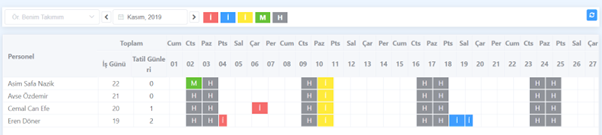
In the displayed list, there are 5 different statuses. These statuses are:
- Approved Leave:**
You can view the full-day or half-day leave of users that has been approved by the manager. These are leave requests created by the user and accepted by the manager, or leave defined directly on behalf of the user. They are shown in red.
- Leave Awaiting Approval:**
You can view the full-day or half-day leave of users that is still awaiting manager approval. These are leave requests created by the user and waiting to be accepted by the manager.
- Public Holidays:**
You can see the public holidays defined when creating the work schedule. They can be full-day or half-day. While work is not expected on full-day holidays, the remaining time after the entered holiday duration is expected to be worked on half-day holidays. Extra overtime can be defined for these days.
- Overtime:**
You can see the days on which users have specified extra overtime. Weekends and Public Holidays can be used to add this kind of extra work. Extra work can be entered for days on which work is not expected.
- Weekends:**
On the workdays defined when creating the work schedule, the unmarked days are accepted as days on which work is not expected. Extra overtime can be defined for these days. To learn more about the 5 different statuses on the user calendar in detail and to make new definitions, you can review our content titled “Defining a New Status on the User Calendar”.