
How to Add General Rules for Activity Management
This article is a machine-translated draft and will be reviewed shortly.
From the General Rules tab of Berqun’s Productivity panel, the system has the ability to automatically mark activities it has recorded or will record as productive or unproductive based on the criteria you define.
When you select Berqun Panel > Productivity > General Rules, you will be presented with a screen where the rules can be defined.
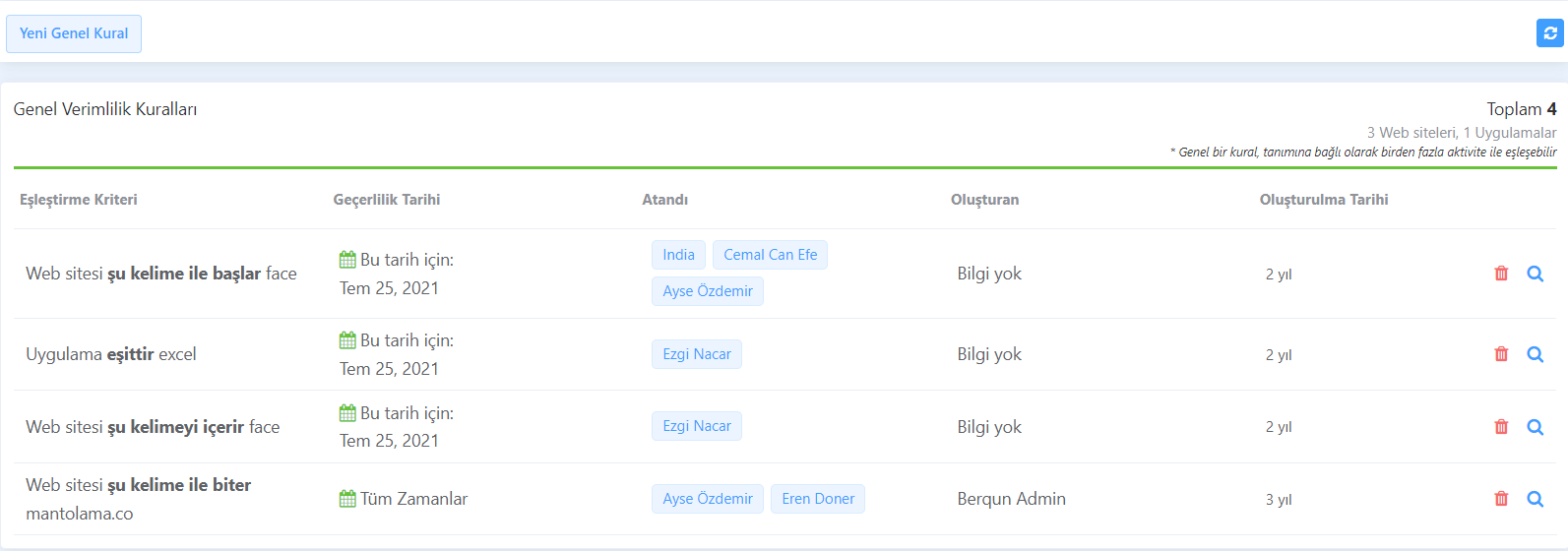
You can create a new rule by clicking the “New General Rule” button located in the upper left corner.

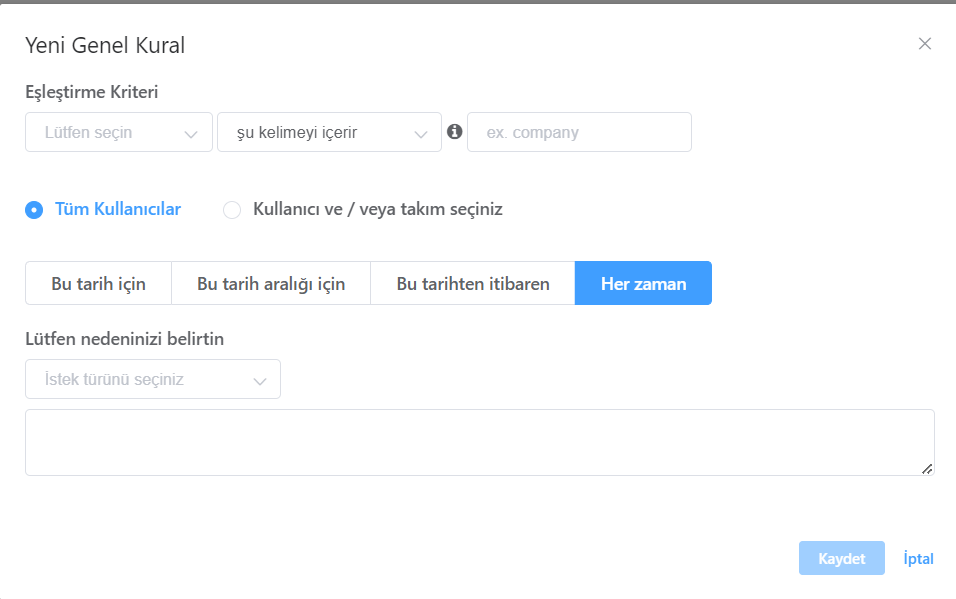
When adding a general rule, you can select a keyword, how that keyword is matched, and a program or website as matching criteria. Recording options are also offered by specifying the domain.
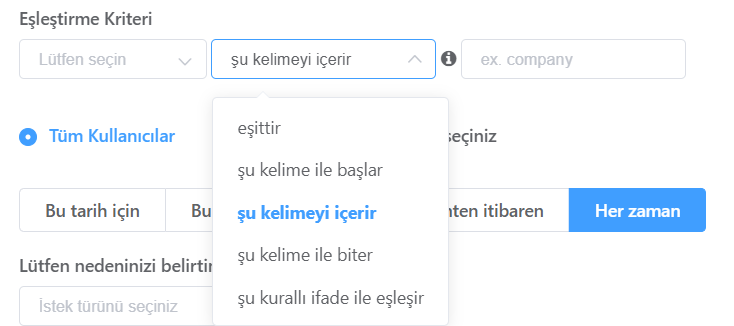
In this way, activities sent for approval that match the rules you have defined are approved directly, reducing your workload.
So how can I view activity requests coming from Berqun users? You can find the answer to this question in our content titled “Pending Requests in Berqun”.