
How Can I Designate Managers in Berqun?
This article is a machine-translated draft and will be reviewed shortly.
You can follow the steps below to designate the person or people you want to make a manager on the Berqun panel:
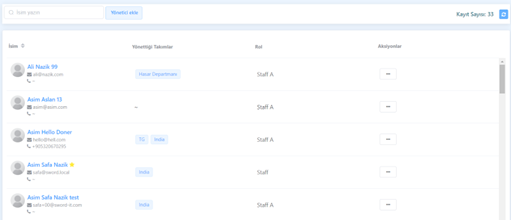
Viewing the Manager List
There are two types of profiles in the Berqun application: Employee and Manager.
Employees selected as managers here can view the data of other employees besides themselves and also have viewing permission in the manager section.
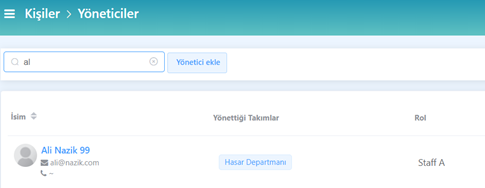
Searching for Manager Records by Name and Surname
To search by name-surname, you can type a few characters of the manager’s name-surname into the search box and list the managers containing those characters from among all records.
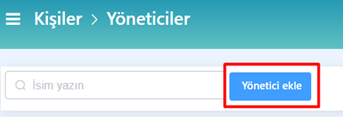
Adding a Manager
The “Add Manager” button is used to add a manager. You can carry out this process with the following steps:
- Entering Personal Information and Module Permissions
First, the personal information of the new manager is entered and module permissions are assigned. 2. The “Super User” role provides the manager access to all screens of the Berqun application. However, this access does not mean viewing the data of all employees. 3. You can determine which employees’ data can be accessed on the next screen. 4. Determining the Data the Manager Can Access The employees whose data the manager can access are determined. This setting can be configured to view the data of all employees, specified teams, or only their own data. 5. Assigning a Temporary Password and Setting Email Notification In the third step, a temporary password is assigned to the new manager and, optionally, it is specified whether an email notification will be sent.