
How to Add a New Work Schedule?
This article is a machine-translated draft and will be reviewed shortly.
When you want to create a new work schedule, you can follow the steps below:
- Click the “Work Schedule / Shifts” tab in the left menu.
- Select the “Schedule / Shift List” option.
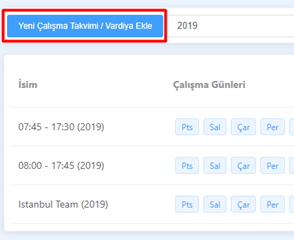
- Click the “Add New Work Schedule / Shift” button in the top-left corner.
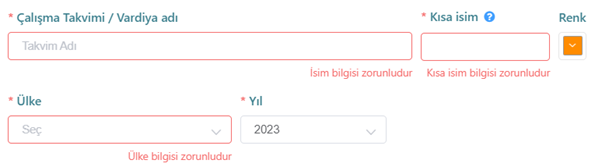
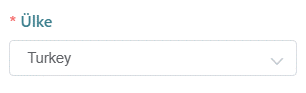
- After entering the work schedule’s name, short name, country, schedule colour and the year it belongs to, move on to the workdays section.
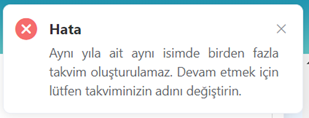
Important Note: A Work Schedule / Shift name cannot be repeated within the same year it was created. If you try to enter an existing schedule name, you will see a warning.
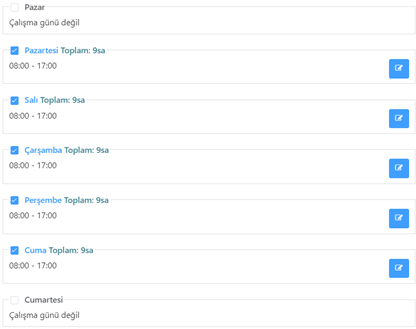
Define the workdays: Click the edit button on the right to set the check-in/check-out times for the days you have selected as workdays, and choose the working hours.
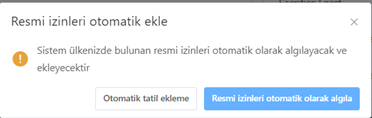
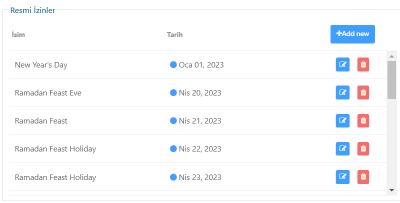
Define holidays and leave: You can add, edit or delete full-day or half-day leave. In addition, after selecting a country, you can easily add public holidays with Berqun’s wonderful “Automatically detect public holidays” feature.
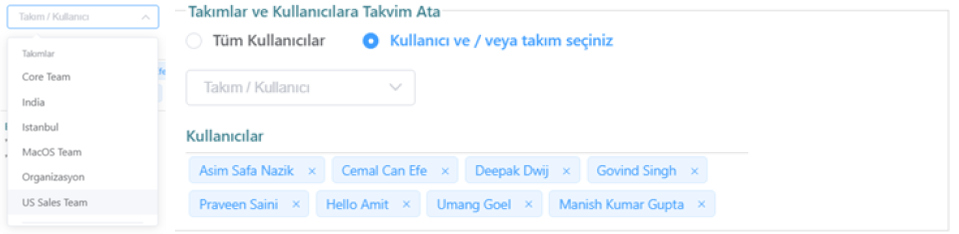
Specify the users who will use the work schedule: You can assign users by using the “All Users” or “User and / or Team” options.

With the user and / or team selection option, after selecting a specific team, you can also remove any users you wish from that team’s list.
Then save your changes.

By following these steps, you can create a new work schedule. So how can you edit the new work schedule you’ve created? For that, you can read our content titled “How to Edit a Work Schedule?” right away.