
How to Get the Monthly Timesheet Report?
This article is a machine-translated draft and will be reviewed shortly.
Berqun’s Monthly Timesheet Report is a comprehensive report you can use to monitor your employees’ working hours, BQ Scores, and productivity. This report is a powerful tool for examining your work details within a specific month and boosting productivity.
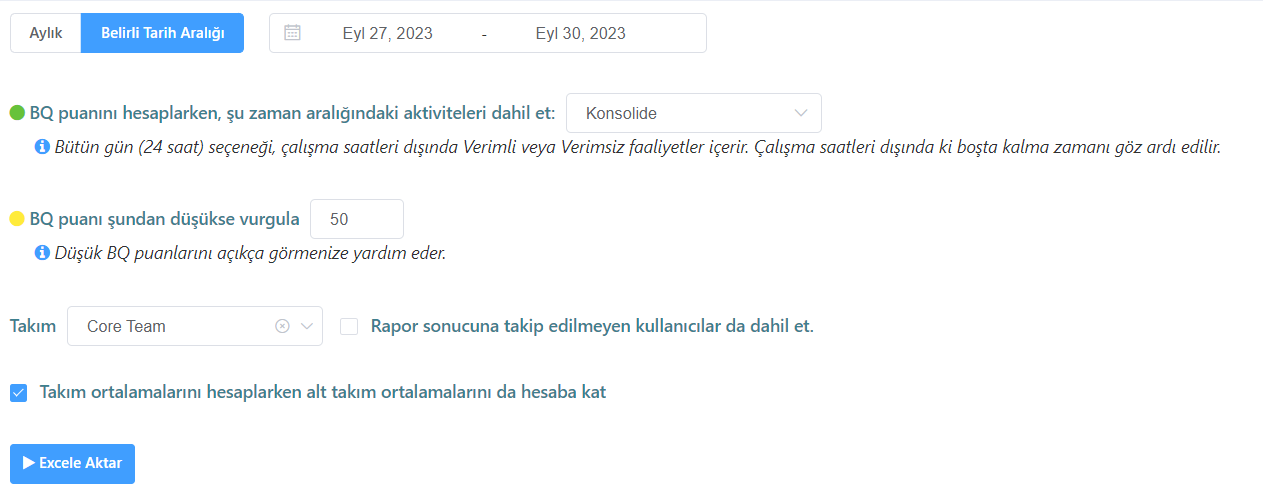
Here are the steps to get the monthly timesheet report:
- Go to the Reports tab and click the “Monthly Timesheet” button.
- On the screen that appears, choose between the Monthly or Specific Date Range options.

- When calculating the BQ Score, include the activities within your preferred time range by choosing one of the Consolidated, All Day (24 Hours), and Working Hours Only options.
- If you want people below a certain BQ Score to be highlighted in the prepared Excel file, set your threshold using the “Highlight if BQ Score is below” option.

This report type contains 4 different tabs in Excel. These tabs are:
- BQ Timesheet
- Working Hours Timesheet
- Productive Hours Timesheet
- Unproductive Hours Timesheet
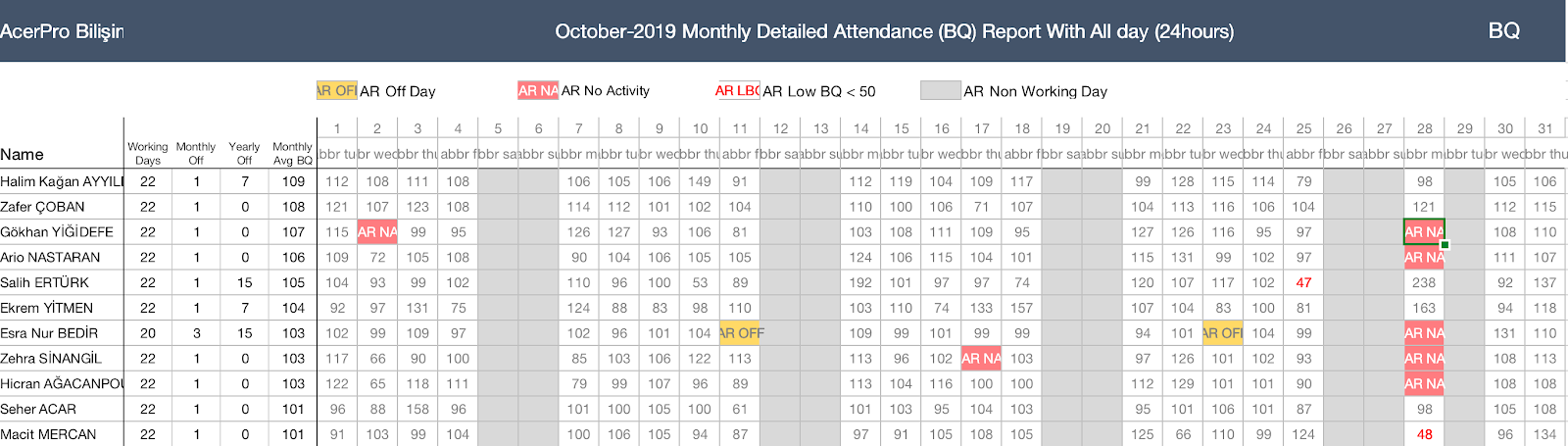
BQ Timesheet
This tab lists the days your employees worked, the days they were on monthly leave, the days they were on annual leave, and the BQ Scores they achieved on each day. In addition, days where the BQ Score fell below the threshold are highlighted.
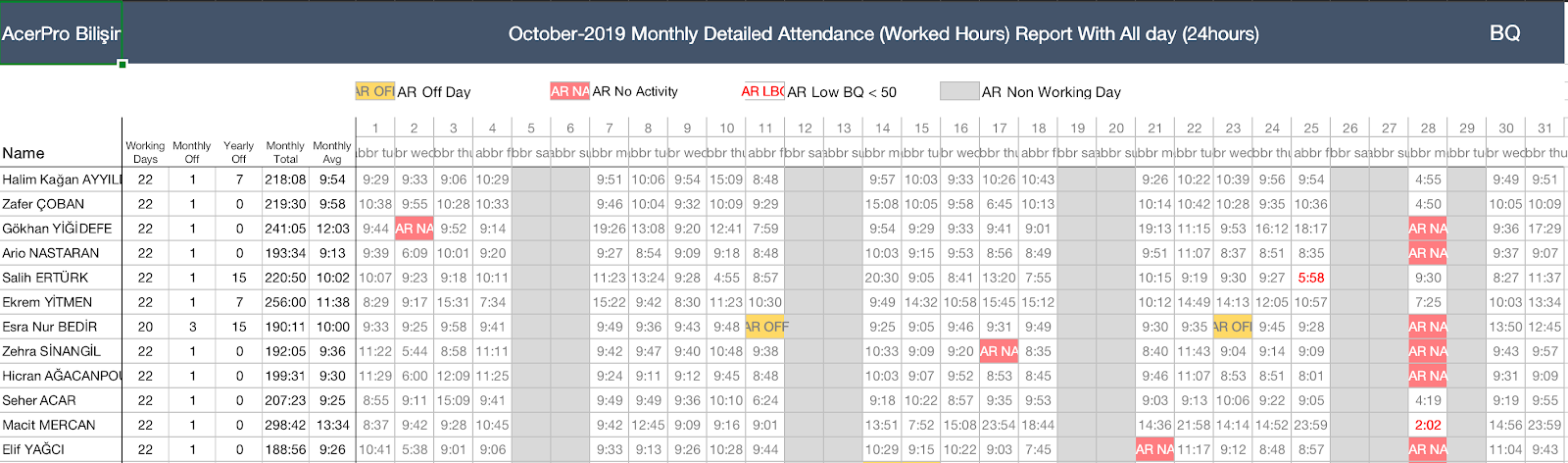
Working Hours Timesheet
This tab shows the days your employees worked, the days they were on monthly leave, the days they were on annual leave, the monthly average working hours, and the working hours for each day in detail. Additionally, days where the BQ Score fell below the threshold are indicated.
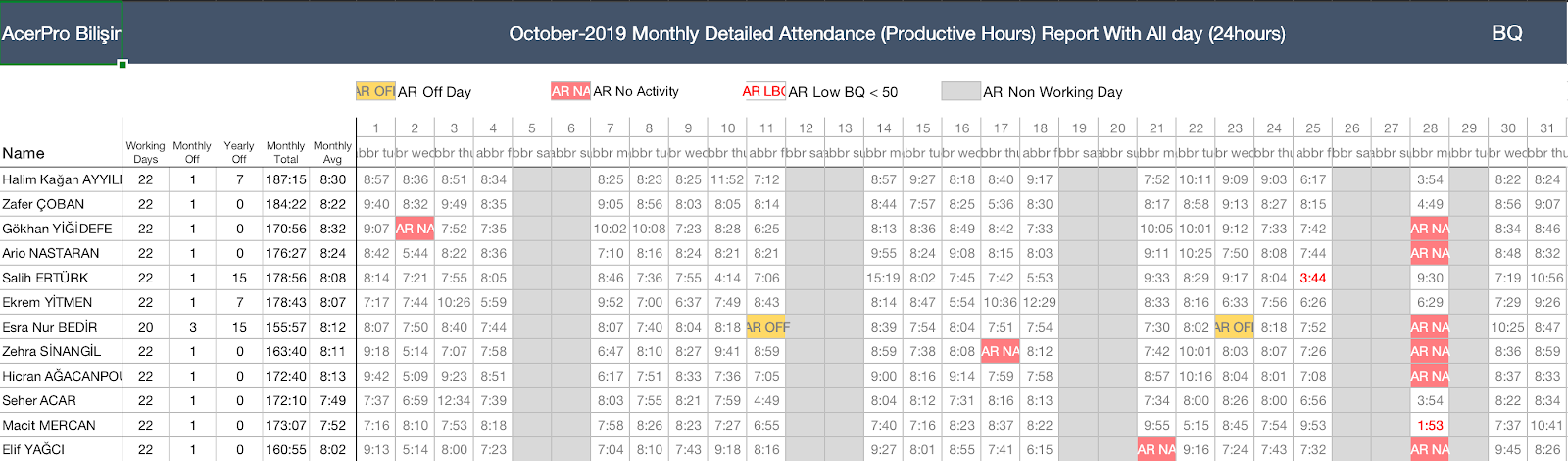
Productive Hours Timesheet
This tab displays the days your employees worked, the days they were on monthly leave, the days they were on annual leave, the monthly average productive hours, and the productive hours for each day in detail. Again, days where the BQ Score fell below the threshold are highlighted.
Unproductive Hours Timesheet
This tab reports the days your employees worked, the days they were on monthly leave, the days they were on annual leave, the monthly average unproductive hours, and the unproductive hours for each day in detail. Days where the BQ Score fell below the threshold are also indicated.
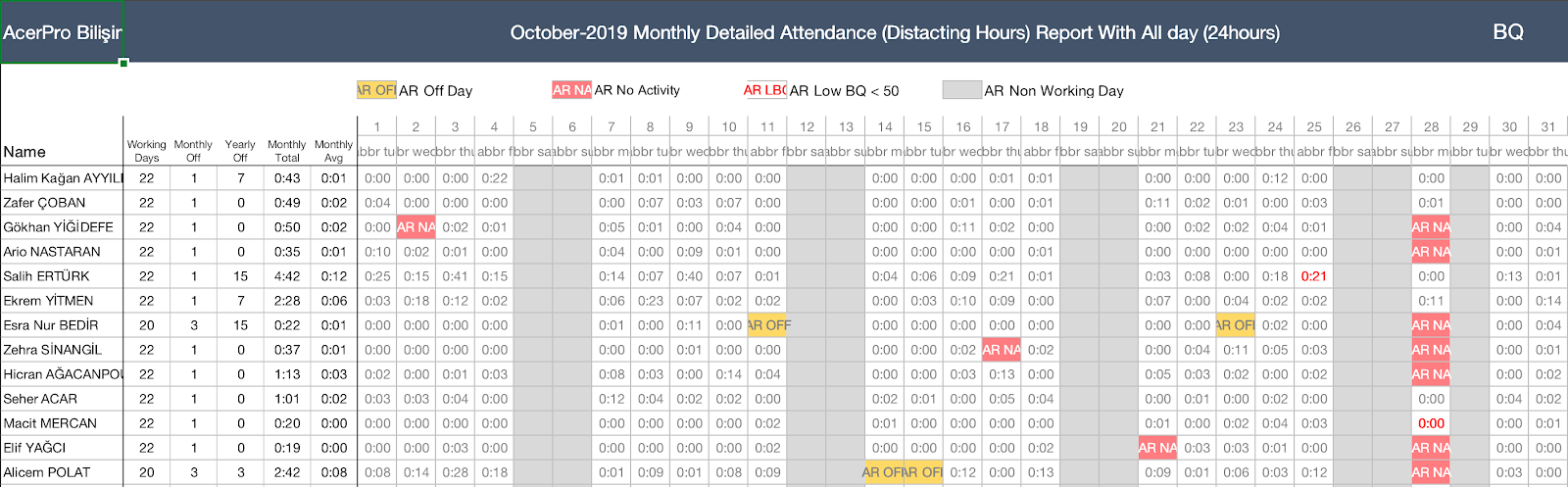
The Monthly Timesheet Report helps you monitor your employees’ work performance, evaluate their productivity, and take corrective action when needed. You can use this report regularly to optimise your business processes.
You may also be interested in: How to Get the Monthly Overtime Report?